I still remember the night I spent four hours downloading a massive open-world RPG, only to have it crash to the desktop thirty seconds after the opening cinematic. The error message was a cryptic string of numbers that meant nothing to me. I was furious. I had waited all week to play, and now my Friday night was ruined by a frozen screen and a blinking cursor. That experience sent me down a rabbit hole of forums, driver updates, and graphics settings that eventually turned me from a frustrated button-masher into someone who actually understands how games work under the hood.
If you have ever stared at a black screen where your game should be, struggled with stuttering frame rates, or wondered why your expensive setup still feels sluggish, this guide is for you. We are going to cover the most common gaming problems, how to fix them, and how to build or optimize a setup that delivers the experience you paid for.
Why Games Crash and How to Diagnose the Real Culprit
Game crashes are the most demoralizing problem a player can face. One moment you are immersed in a world, and the next you are staring at your desktop wondering what went wrong. The causes fall into three main categories: software conflicts, hardware limitations, and corrupted game files.
Software conflicts are the most common. An outdated graphics driver, a conflicting background application, or a recent Windows update can all destabilize a game. If your crashes started suddenly after an update, that is your first clue. Roll back the update or check the game developer’s patch notes for known issues.
Hardware limitations show up differently. If your game runs fine for five to fifteen minutes and then crashes, your system is likely overheating or running out of memory. Check your temperatures using free monitoring tools. If your CPU or GPU is hitting 85 degrees Celsius or higher, cooling is your problem. If your RAM usage is maxed out, you need to close background apps or add more memory.
Corrupted game files are sneakier. A bad download, a failed update, or a hard drive error can leave your game installation incomplete. Most platforms like Steam, Epic Games, and Xbox have built-in tools to verify and repair game files. Run these before you reinstall anything. They often fix crashes in minutes without requiring a full re-download.
The Graphics Settings That Actually Matter
Every PC game ships with a laundry list of graphics options that can overwhelm even experienced players. The truth is, most of those settings have a minimal impact on how the game looks while absolutely destroying your performance. Learning which ones to tweak and which ones to ignore can double your frame rate without making the game look noticeably worse.
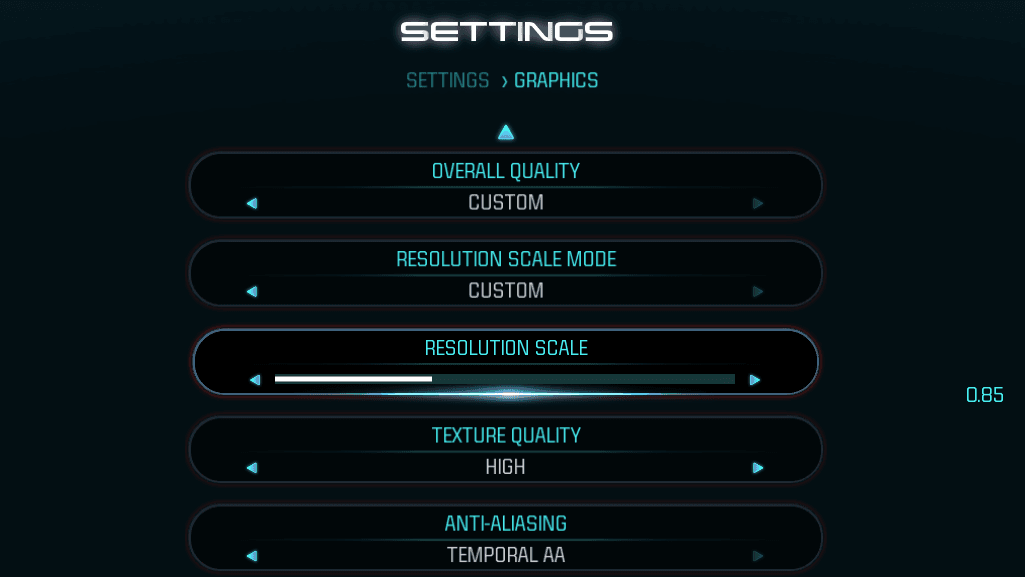
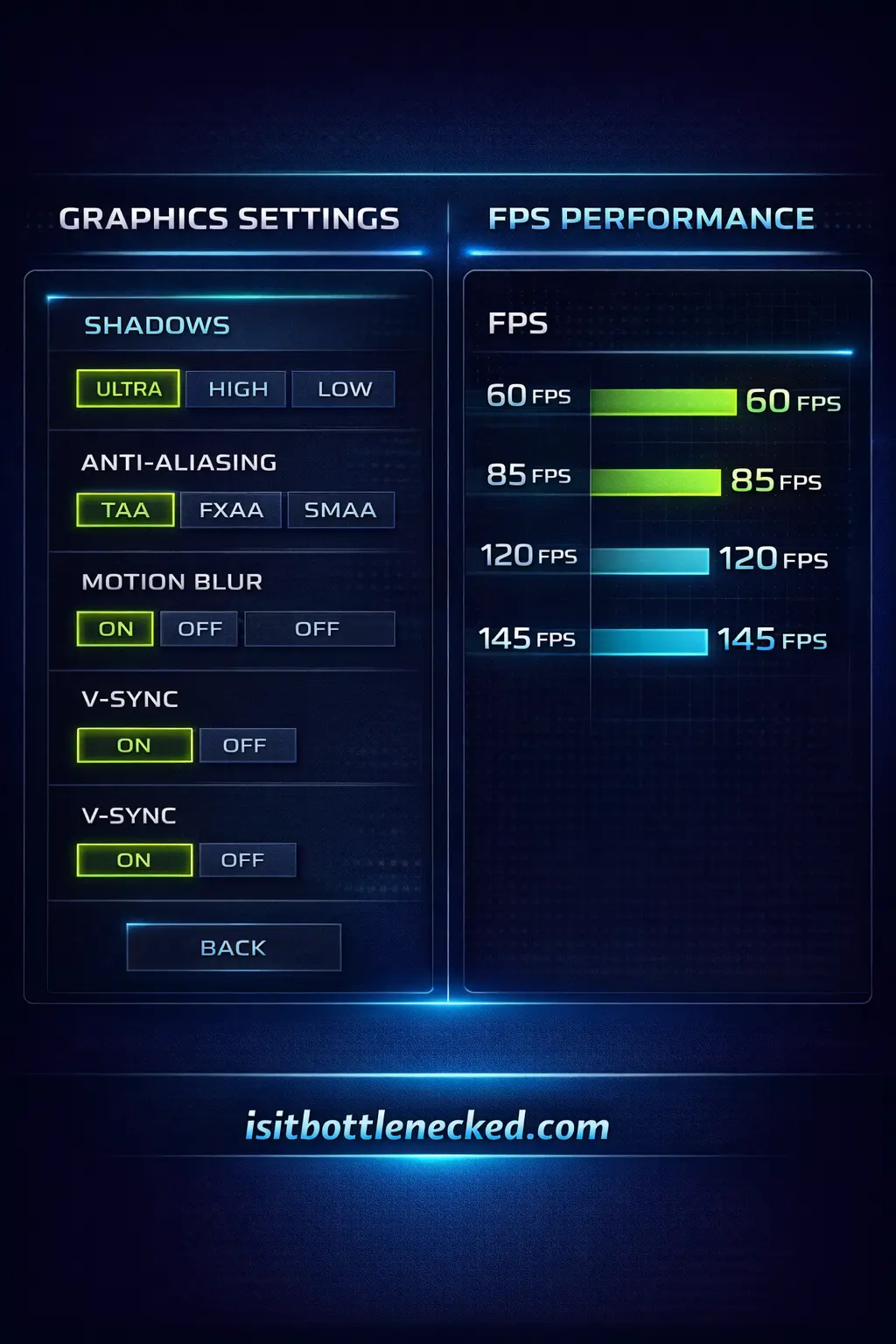
Start with the heavy hitters. Shadow quality is one of the most demanding settings in any game. High-resolution shadows with realistic soft edges look nice, but they consume enormous GPU resources. Dropping shadows from ultra to medium often yields a ten to twenty percent performance boost with barely any visual difference during actual gameplay.
Anti-aliasing smooths jagged edges on objects. At lower resolutions like 1080p, it makes a noticeable difference. At 1440p and especially 4K, the pixels are already so small that aggressive anti-aliasing is overkill. Try lowering this setting or switching to a less demanding method like FXAA instead of MSAA.
View distance controls how far you can see detailed objects. In open-world games, maxing this out hits your CPU hard. Unless you are playing a competitive shooter where spotting distant enemies matters, medium view distance is usually plenty.
Now for the settings you can safely disable. Motion blur, chromatic aberration, film grain, and lens flare are post-processing effects that mimic camera artifacts. They do not improve gameplay, and many players find them distracting. Turning them off often improves clarity and performance simultaneously.
Ray tracing is the current darling of graphics technology, and it looks stunning in the right scenes. But it is brutally demanding. Even high-end GPUs can see their frame rates cut in half. If your system is struggling, disable ray tracing entirely. The visual improvement is not worth the performance cost on mid-range hardware.
Fixing Lag and Stuttering in Online Multiplayer
Nothing ruins a competitive match like lag. You line up the perfect shot, press the button, and nothing happens for half a second. By the time your input registers, you are already dead. Online lag comes in two flavors: network lag and system lag, and fixing the wrong one wastes your time.
Network lag is measured by your ping, the time it takes for data to travel between your computer and the game server. A ping under 50 milliseconds is excellent. Between 50 and 100 is playable. Above 150, you will notice significant delays. To reduce ping, use a wired Ethernet connection instead of Wi-Fi. Close any background downloads or streaming. Choose game servers geographically close to your location. And if your router is more than a few years old, consider upgrading to a modern model with better traffic prioritization.
System lag shows up as stuttering, frame drops, or input delay even when your ping is fine. This is usually caused by your hardware struggling to maintain a consistent frame rate. Cap your frame rate to match your monitor’s refresh rate. Uncapped frame rates cause your GPU to work unnecessarily hard, generating heat and inconsistent frame times. Use your graphics card control panel to set a global frame rate limit of 60 or 120 depending on your monitor.
Micro-stuttering, where the game feels jerky despite showing a high average frame rate, is often caused by background processes stealing CPU cycles. Open Task Manager while gaming and watch for spikes. Common culprits include Windows Update, antivirus scans, and cloud backup services like OneDrive or Dropbox. Schedule these for when you are not gaming.
Building Your First Gaming Setup Without Overspending
You do not need to spend a fortune to have a great gaming experience. The key is balancing your components so that none of them create a bottleneck that holds the others back.
For a solid entry-level setup in 2026, aim for these specifications:
-
CPU: A modern mid-range processor like an Intel Core i5 or AMD Ryzen 5. These handle current games at 1080p without breaking a sweat.
-
GPU: A graphics card capable of running games smoothly at 1080p with medium to high settings. The RTX 4060 or equivalent AMD cards are excellent starting points.
-
RAM: 16 gigabytes is the current standard. Anything less will cause stuttering in modern titles.
-
Storage: A one-terabyte NVMe SSD. Games are enormous now, and loading from a solid-state drive transforms the experience compared to old mechanical hard drives.
-
Power Supply: Choose a unit with 80 PLUS Bronze or Gold certification. Do not cheap out here. A failing power supply can damage your entire system.
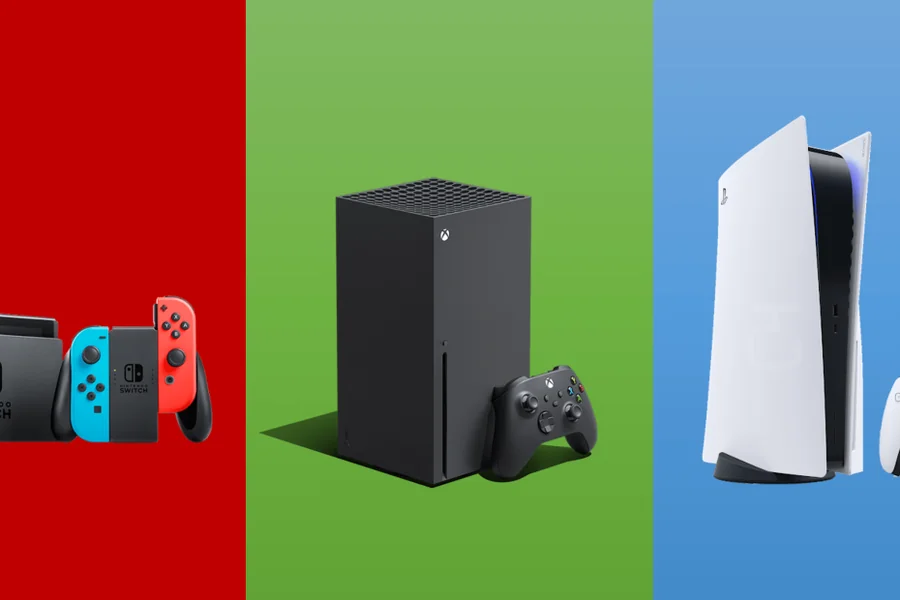
When selecting a monitor, prioritize refresh rate over resolution for competitive games. A 1080p monitor at 144Hz will feel far smoother than a 4K monitor at 60Hz. For single-player adventures where visuals matter more than reaction time, a 1440p display at a high refresh rate offers the best balance of clarity and smoothness.
Console Gaming Tips for Better Performance
Console players are not immune to performance issues. While you cannot swap out graphics cards, there are still meaningful optimizations you can make.
Keep your console well-ventilated. Modern consoles generate significant heat, and cramped entertainment centers with poor airflow cause thermal throttling, where the system reduces performance to prevent overheating. Leave several inches of clearance around all sides. Dust the vents every few months with compressed air.
Use performance modes when available. Many games on current-generation consoles offer a choice between fidelity mode, which prioritizes resolution and visual effects, and performance mode, which targets higher frame rates. Unless you are playing a slow-paced narrative game, performance mode almost always provides a better experience.
Enable game mode on your television. Most modern TVs have a dedicated gaming mode that reduces input lag by disabling image processing effects. Without it, your button presses may be delayed by 50 to 100 milliseconds, which is noticeable in fast-paced games.
Protecting Your Progress: Save Data Backup
Losing a save file is heartbreaking. Dozens or hundreds of hours of progress can vanish in an instant due to a corrupted file, a failed update, or a hardware failure. Protect yourself before disaster strikes.
Enable cloud saves on every platform you use. Steam, Xbox, PlayStation, and Nintendo Switch all offer cloud backup for your save data. Make sure it is turned on and verify occasionally that your saves are syncing properly. For PC games that do not support cloud saves, manually back up your save folder to an external drive or cloud storage service.
Know where your saves live. On PC, most save files are located in your Documents folder or in the AppData directory. A quick search for the game’s name in these folders will usually reveal them. Copy these files before major updates or when switching computers.
Controller and Input Problems
A non-responsive controller can turn any game into an unplayable mess. Before you throw it across the room, try these fixes.
For wired controllers, check the cable and USB port. A frayed cable or a loose connection causes intermittent disconnections. Try a different cable and a different USB port, preferably a USB 3.0 port on the back of your PC rather than the front panel, which sometimes has weaker power delivery.
For wireless controllers, low batteries are the most common cause of lag and disconnections. Replace or recharge them. If you are using Bluetooth, interference from other devices can cause issues. Move closer to your receiver, or switch to a dedicated wireless adapter that uses a different frequency.
If your controller is recognized but the buttons are mapped incorrectly, check Steam’s controller configuration settings. Steam Input can override native gamepad support and cause conflicts. Disable Steam Input for that specific game if the native controller support works better.
Windows Settings That Sabotage Your Games
Your operating system is not always your friend. Several default Windows settings can quietly degrade gaming performance without you realizing it.
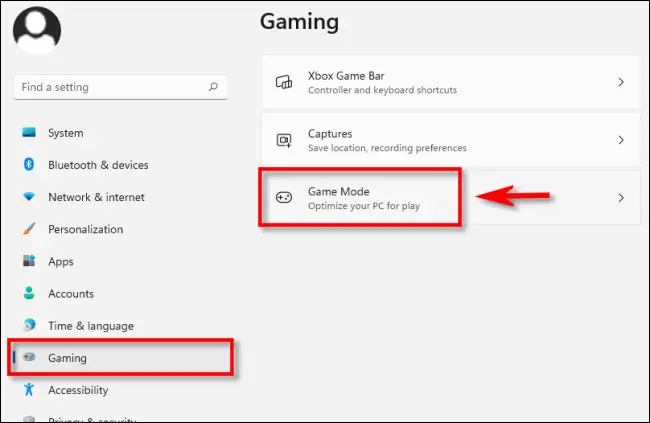
Game Mode is a Windows feature designed to prioritize gaming performance. In theory, it limits background tasks. In practice, it sometimes causes stuttering and compatibility issues. Try turning it off if you are experiencing problems. Go to Settings, Gaming, Game Mode, and toggle it off.
Fullscreen optimizations can add input lag in some games. Right-click your game’s executable, select Properties, go to the Compatibility tab, and check “Disable fullscreen optimizations.” This forces the game to run in exclusive fullscreen mode, which often reduces latency.
Hardware-accelerated GPU scheduling is a newer Windows feature that can improve performance on newer hardware but cause issues on older systems. If you have a recent GPU and CPU, leave it on. If you are on older hardware and experiencing stuttering, try turning it off in Graphics Settings.
Background apps steal resources. Go to Privacy and Security, Background Apps, and turn off everything you do not need running constantly. Your game does not need Spotify, Discord, and fifteen browser tabs competing for RAM.
When to Upgrade and When to Wait
The hardware market moves fast, and the fear of missing out is real. But upgrading at the wrong time wastes money. Here is how to know when your system genuinely needs a boost.
If your GPU is consistently at 95 to 100 percent usage while your CPU sits at 50 percent, your graphics card is the bottleneck. Upgrading it will give you the biggest improvement. If the reverse is true, your CPU is holding you back. If both are maxed out, you need a more substantial overhaul.
Do not upgrade just because a new component launched. Ask yourself whether your current setup still plays the games you care about at settings you find acceptable. If the answer is yes, wait. The longer you wait, the better the price-to-performance ratio becomes.
Frequently Asked Questions
Why does my game crash after a few minutes of playing?
This pattern usually indicates overheating or memory issues. Check your CPU and GPU temperatures. If they are above 85 degrees Celsius, clean your fans and improve ventilation. Also verify your RAM usage and virtual memory settings.
What graphics settings should I lower first for better performance?
Start with shadow quality, anti-aliasing, and view distance. These three settings have the biggest performance impact. Disable motion blur, film grain, and chromatic aberration, as they do not improve gameplay.
How do I fix online multiplayer lag?
Use a wired Ethernet connection instead of Wi-Fi. Close background downloads and streams. Choose servers close to your location. If your ping is still high, contact your internet provider to check for line issues.
Is 16GB of RAM enough for gaming in 2026?
Yes, for most current games, 16GB is sufficient. However, some newer titles and heavy multitasking scenarios benefit from 32GB. If you frequently stream or run multiple applications while gaming, consider upgrading.
Should I use VSync?
VSync eliminates screen tearing by capping your frame rate to your monitor’s refresh rate. However, it can add input lag. For competitive games, consider using a frame rate limiter in your GPU control panel instead. For single-player games, VSync is usually fine.
How do I back up my game saves?
Enable cloud saves on your platform. For PC games without cloud support, manually copy save files from your Documents or AppData folders to an external drive or cloud storage service.
Why is my controller not working in some games?
This is often a conflict between Steam Input and native controller support. Disable Steam Input for that specific game in your Steam library settings. Also ensure your controller drivers are up to date.
Does Game Mode actually help?
Results vary. On some systems it improves performance by limiting background tasks. On others it causes stuttering. Try toggling it on and off to see which works better for your specific setup.